Introduction
If you’ve ever printed a multi-page document and ended up with a jumbled pile of pages, you know how frustrating it can be to sort everything by hand. That’s exactly where the collate printer setting comes in. It’s a small checkbox that makes a big difference — especially when you’re printing multiple copies of the same document. Whether you’re printing reports, handouts, or booklets, understanding this setting can save you a lot of time and headaches.
Last updated: June 28, 2026
What Does “Collate” Actually Mean?
The word collate simply means to collect and arrange in the correct order. In the context of printing, it tells your printer how to organize the pages when you’re making more than one copy.
Let’s say you’re printing three copies of a five-page report. Here’s how the output differs:
With Collate ON: Pages come out as: 1-2-3-4-5, then 1-2-3-4-5, then 1-2-3-4-5
With Collate OFF: Pages come out as: 1-1-1, 2-2-2, 3-3-3, 4-4-4, 5-5-5
When collate is on, each complete copy is printed before the next one starts. When it’s off, all copies of page one print first, then all of page two, and so on.
When Should You Use the Collate Printer Setting?
This is where most people get confused. There’s no single right answer — it really depends on your situation.
Use collate when:
- You’re printing handouts for a meeting or classroom
- You need multiple complete sets of a document
- You want to skip manually sorting pages afterward
- You’re printing booklets or multi-section reports
Skip collate (or turn it off) when:
- You need all copies of one page together (like printing 50 copies of a flyer)
- Your printer is slow and collating increases print time significantly
- You’re printing single-page documents anyway
What Is Acubi Fashion? The Viral Aesthetic Explained
How to Find and Use the Collate Printer Setting
The collate option is usually easy to find once you know where to look. Here’s a quick walkthrough for the most common platforms.
On Windows
- Press Ctrl + P to open the Print dialog
- Select your printer
- Look for a section called Copies or Page Handling
- You’ll see a checkbox labeled Collate — check it to enable
- Set the number of copies and hit Print
On Mac
- Press Command + P
- Click Show Details if the full menu isn’t visible
- Find the Copies field
- Check the Collated box right next to it
- Click Print
In Microsoft Word or Excel
Most Office apps show the collate option directly in the print preview window. Just set your number of copies, and you’ll see the collate checkbox right there — no digging required.
On a Shared or Office Printer
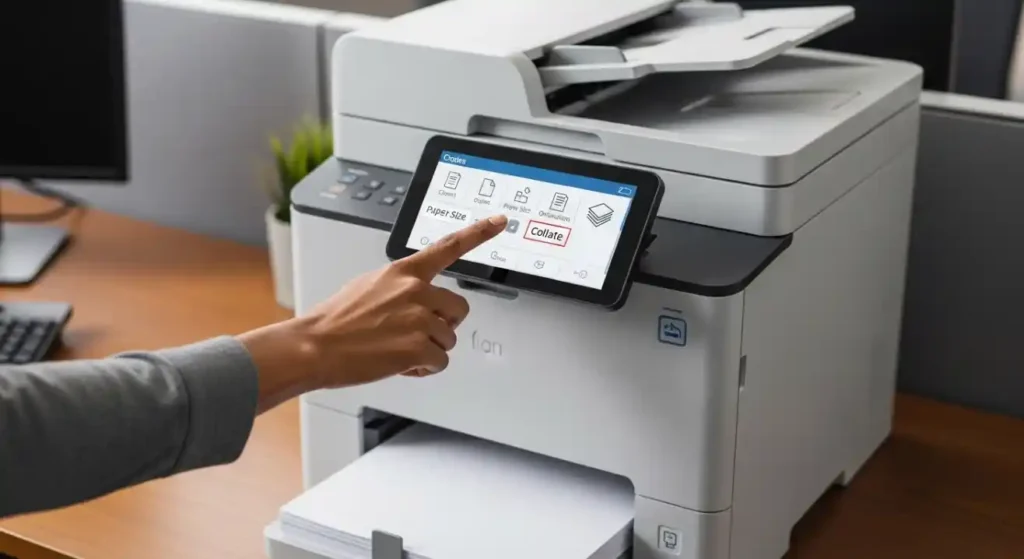
Some office printers have their own built-in touch screens. If you’re printing from a copier or multifunction device, look under Output Settings or Finishing Options on the screen. The collate setting may be called Sort on some older machines.
Practical Example: Printing a Staff Handbook
Imagine you need 10 copies of a 20-page staff handbook for new employees. If you print without collating, you’ll get 10 copies of page one in a stack, then 10 copies of page two, and so on. You’d have to manually assemble all 10 handbooks afterward — that’s 200 pages to sort by hand.
With collate turned on, your printer spits out one complete 20-page handbook, then another, then another — all the way to ten. You just grab them off the tray and hand them out. Done.
That’s a real-world time saver, especially in a busy office.
Pros and Cons of Using the Collate Setting
Pros
- Saves sorting time — no need to manually organize pages
- Reduces errors — pages come out in the right order automatically
- Great for presentations and reports — looks professional right out of the printer
- Easy to use — it’s just a checkbox in most print dialogs
Cons
- Slower printing — the printer completes one full set before starting the next, which can take longer
- Higher ink/toner use per session — some printers reload the document for each copy
- Not always needed — for single-page docs or identical flyers, it adds no real value
- Can confuse older printers — some budget printers handle collating awkwardly, especially with large files
Common Mistakes People Make with Collating
Even a simple setting like this can trip people up. Here are the most common mistakes to avoid.
Leaving collate on when printing single pages. It doesn’t hurt anything, but it’s unnecessary and can sometimes slow things down.
Forgetting to check the setting before a big print job. Always double-check before printing 50+ copies of anything. Getting it wrong means reprinting everything.
Confusing collate with duplex printing. These are two different things. Duplex means printing on both sides of the paper. Collate controls the page order across copies. You can use both together, but they’re separate options.
Assuming the printer default is always correct. Some printers default to collate on, others don’t. Never assume — always check.
Not previewing before printing. Always use print preview to confirm your settings look right, especially for important documents.
Best Practices for Using the Collate Printer Setting
Follow these simple tips to get the most out of this feature.
- Always check the setting before large jobs. Make it part of your printing checklist.
- Use collate for any document with more than two pages. It almost always makes life easier.
- Combine it with stapling if your printer supports it. Many office printers can staple collated sets automatically — a massive time saver.
- Test with one copy first. For a big job, print one collated copy and make sure everything looks right before printing the full batch.
- Understand your printer’s speed. If collating dramatically slows your printer, consider whether manually sorting might actually be faster for very large jobs.
Conclusion
The collate printer setting is one of those small features that gets overlooked until you really need it. Once you understand what it does — organizing your printed copies into complete sets automatically — it becomes something you’ll use regularly. It’s especially useful for anyone who prints multi-page documents often, whether that’s in an office, a school, or even at home.
Next time you’re printing more than one copy of anything with multiple pages, take a second to check that collate box. Future you will be grateful for not having to sort through a pile of loose pages.
Frequently Asked Questions
1. What does the collate printer setting do?
It organizes printed copies so that each full set of pages prints together, rather than printing all copies of each page in sequence.
2. Should collate be on or off by default?
Most printers and applications have it turned on by default. However, it’s worth checking before each large print job to make sure it matches your needs.
3. Does collating slow down printing?
It can, slightly. The printer has to complete one full copy before starting the next. For large documents with many copies, this can add some time.
4. Is collate the same as duplex printing?
No. Duplex printing means printing on both sides of a page. Collating refers to the order in which multiple copies are printed.
5. Can all printers collate?
Most modern printers support collating through software, even if the hardware doesn’t do it mechanically. The print driver handles it digitally before sending the job to the printer.
Source: Britannica
Related Articles
- Optimizing the R34 Web Framework for High-Speed Performance
- Zonga Detect: The Future of Intelligent Detection Technology
- Master the Solo ET: The Ultimate Guide to Solo Entrepreneurship
Editorial Note: This article was researched and written by the Cheeky Zebra editorial team. We fact-check our content and update it regularly. For questions or corrections, contact us.