So you reposted something on Instagram and now you’re having second thoughts? Maybe it doesn’t fit your aesthetic anymore, or you just changed your mind. Either way, knowing how to unrepost on Instagram is a genuinely useful skill — and it’s simpler than most people think.
Instagram has evolved a lot over the years, and the repost feature (officially added in 2022) gave users a native way to share content they love. But what happens when you want to undo that? Let’s walk through everything you need to know.
What Does “Unrepost” Mean on Instagram?
Before diving into the steps, it helps to understand what a repost actually is on Instagram.
When you repost a Reel or feed post, it shows up on your own profile grid (for Reels) or disappears from the original spot depending on how you shared it. An “unrepost” simply means removing that shared content so it no longer appears on your profile or feed.
It’s worth noting that Instagram’s repost feature works a little differently than third-party repost apps. So the removal process can vary slightly depending on how you originally shared the content.
ECMISS: The Powerful Digital System Transforming Modern Data Management
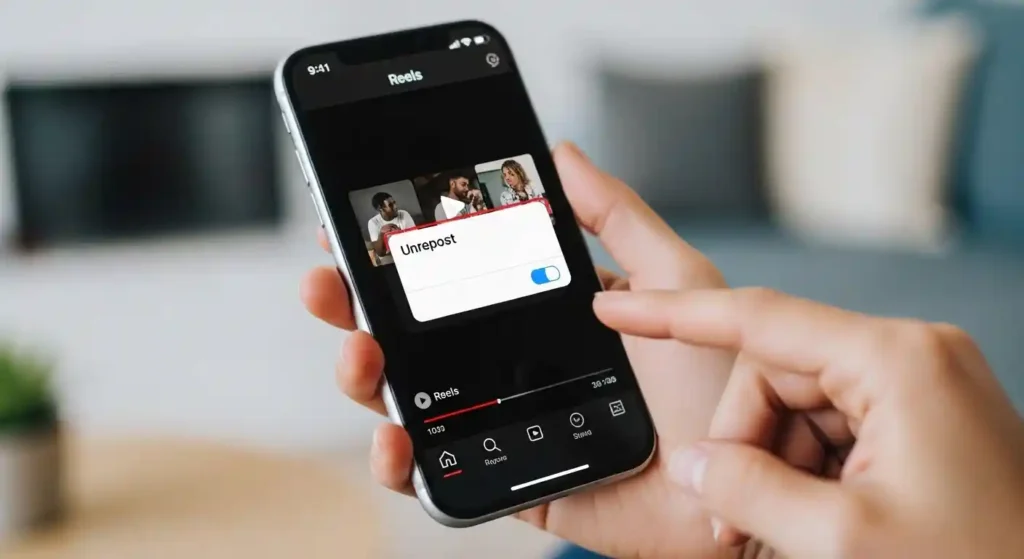
How to Unrepost on Instagram: Step-by-Step
Removing a Reposted Reel
This is the most common scenario. Here’s exactly what to do:
- Open the Instagram app on your phone.
- Go to your profile page by tapping your photo in the bottom right.
- Tap the Reels tab (the play button icon under your bio).
- Find the Reel you reposted and tap on it.
- Tap the three-dot menu (⋮) in the bottom right corner.
- Select “Remove from profile” or “Unrepost.”
- Confirm your choice when prompted.
That’s it. The repost disappears from your grid immediately.
Removing a Reposted Feed Post
If you reposted a regular photo or carousel post, the steps are slightly different:
- Navigate to your profile.
- Find the reposted post in your grid.
- Tap the three-dot menu at the top right of the post.
- Choose “Delete” or “Remove repost” depending on your app version.
- Confirm the removal.
Keep in mind that deleting a reposted feed post only removes your share — it does not delete the original creator’s content.
Using the Original Post to Unrepost
Another quick method:
- Go to the original post you reposted.
- Tap the paper airplane icon (share button).
- You should see an option that says “Remove repost” if you’ve already shared it.
- Tap it and confirm.
This method is especially handy if you can’t easily locate the repost on your own profile.
What Happens After You Unrepost?
Once you remove a repost, a few things happen:
- The content is removed from your profile grid.
- The original creator’s post is not affected in any way.
- Any comments or interactions on your reposted version may be lost.
- The original creator will no longer see your profile associated with that share.
It’s a clean removal. There’s no notification sent to the original poster saying you removed your repost.
Unreposting Content Shared via Third-Party Apps
Before Instagram added its native repost feature, many users relied on third-party apps like Repost for Instagram or DownloadGram. If you used one of these to repost content, the removal process is different.
Since those tools typically save a copy of the media to your camera roll and let you upload it as your own post, the “unrepost” is really just deleting a regular post:
- Go to your profile.
- Find the post.
- Tap the three-dot menu.
- Select “Delete.”
- Confirm.
However, this also permanently removes all engagement (likes, comments) on that post. So think twice before deleting if you’ve had a lot of interaction on it.
Pros and Cons of Reposting on Instagram
Like any feature, reposting has its upsides and downsides. Here’s a quick breakdown:
Pros:
- Helps you share content you genuinely love without creating something new
- Gives credit to original creators and builds community
- Keeps your profile active even when you don’t have original content ready
- Can increase your reach if the original post has a wide audience
Cons:
- Can clutter your profile if you repost too frequently
- May not always align with your personal brand or aesthetic
- Engagement on reposts is typically lower than original content
- You rely on someone else’s content quality and accuracy
Common Mistakes People Make
Even though unreposting is straightforward, there are a few slip-ups that trip people up.
Mistake #1: Confusing a repost with a story share If you shared someone’s post to your story, that’s not a repost — it disappears after 24 hours automatically. No action needed.
Mistake #2: Looking in the wrong tab Reposted Reels live in the Reels tab, not the main grid. Many users search their grid and get confused when they can’t find it.
Mistake #3: Expecting a notification to be sent Some people worry that unreposting will alert the original creator. It won’t. Instagram does not send a notification when someone removes a repost.
Mistake #4: Deleting instead of unposting There’s a difference between “Remove repost” and “Delete.” Deleting can remove interactions permanently. Always double-check which option you’re selecting.
Best Practices for Reposting (and Unreposting) on Instagram
Want to avoid the hassle of having to unrepost in the first place? Follow these simple guidelines:
- Always preview how a repost looks on your profile before committing. Ask yourself if it matches your tone, style, and values.
- Don’t repost too frequently. A few reposts here and there are fine, but if your profile is mostly other people’s content, it can look inauthentic.
- Credit the original creator clearly. Instagram’s native repost tool does this automatically, but if you’re using another method, make sure you tag them.
- Audit your reposts monthly. Set a reminder to go through your Reels tab and clean up anything that no longer fits your profile.
- Think before you repost. If you’re not sure whether a piece of content represents you well, wait a day. If you still want to share it after 24 hours, go for it.
Conclusion
Unreposting on Instagram is genuinely easy once you know where to look. Whether you’re cleaning up your Reels tab, removing outdated content, or just doing a general profile refresh, the steps are quick and your original decision leaves no permanent damage.
The most important thing to remember is that removing a repost only affects your profile — the original creator’s content stays completely intact. So there’s no reason to hesitate if something no longer feels right for your feed.
Take control of your Instagram presence, keep your profile intentional, and don’t be afraid to clean house whenever you need to.
Frequently Asked Questions
Q1: Can I unrepost a Reel on Instagram without the other person knowing?
Yes. Instagram does not notify the original creator when you remove a repost. The process is completely silent on their end.
Q2: Will removing a repost delete the original post?
No. Unreposting only removes the content from your profile. The original creator’s post remains fully visible and unaffected.
Q3: What if I don’t see the “Remove repost” option?
Make sure your Instagram app is up to date. Older versions may not show this option. Try updating the app and checking again.
Q4: Does unreposting remove all the likes and comments on my repost?
Yes, any engagement on your version of the repost will be removed along with the post itself.
Q5: Can I unrepost something I shared to my Instagram Story?
Stories shared from other users’ posts disappear automatically after 24 hours. If yours is still active, go to your story, tap the three dots, and select “Delete.”